The owner has not yet configured a verified public contact address for this installation. A monitored contact channel is still missing. This page does not collect messages or files.
Contact
Learn about contact at Resize Images Online, a local browser image editor.
Updated 4 min read
A practical guide to your next decision
Current contact status and a practical way to describe a problem without sharing private images.
Prepare a useful question without sharing your image
This installation does not yet have a verified public owner contact. There is no working message form or image-submission channel on this page. A contact address must be configured before public launch. Until then, you can still describe a processing problem locally without exporting private filenames or attaching the image itself.
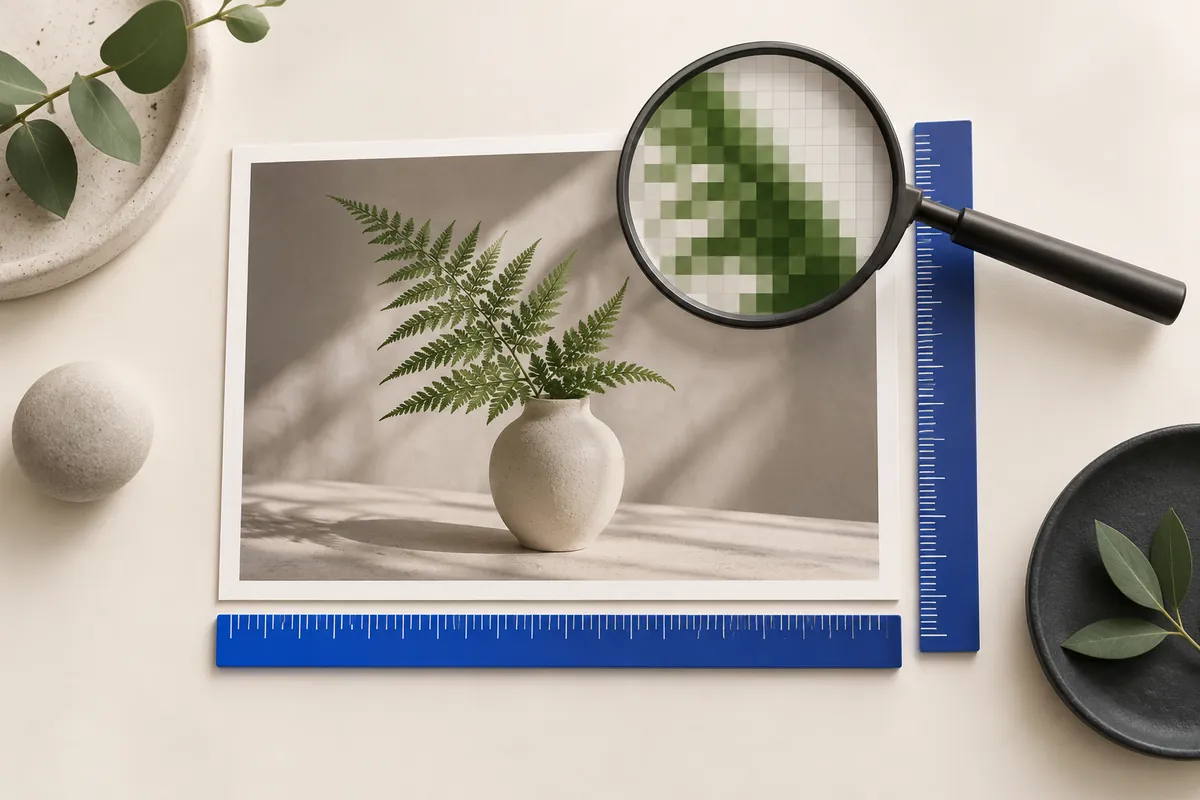
A useful report states the goal, the source format and dimensions, the selected mode, the requested output and the visible error. Distinguish “the file was rejected” from “the exported dimensions were unexpected” and “the destination rejected the download.” Those failures belong to different stages. A synthetic example with the same dimensions can help you reproduce a problem without exposing the original content.
- State what the receiving application requires.
- Note the source type, width, height and bytes, without its name or content.
- List geometry, transparency, format and any byte ceiling.
- Describe the visible result or error and whether a smaller sample reproduces it.
Start with the destination, not a random number
An image is ready when it meets the place where it will be used. A page may ask for a maximum width; an upload form may enforce a byte ceiling; a layout may need an exact rectangle. Those requirements are related, but they are not interchangeable. Write down the destination’s actual instructions before you change the source. “Make it smaller” is a direction. “Keep the complete photo within 1600 × 1600 and below 500000 bytes” is a testable result.
Separate the non-negotiable rules from your preferences. If every product must stay visible, cropping is not an acceptable shortcut. If a form requires PNG, switching to JPEG is not a solution. If a fixed canvas is mandatory, fit mode alone may leave you with the wrong dimensions. The best settings are the ones that satisfy the hard rules while keeping useful detail.
Maximum dimensions
Use fit mode when neither side may exceed a limit and the whole subject must remain visible.
Exact canvas
Use padding to keep the entire image, or cover when you deliberately accept a crop.
Maximum bytes
Set a file-size ceiling and verify the encoded output independently of its dimensions.
Why local tools need honest resource limits
The compressed input is only part of the memory cost. A decoded 4000 × 3000 RGBA image represents 48000000 bytes before working buffers and the output are considered. A batch of large originals can therefore be demanding even when each file looks small on disk. Sequential processing reduces simultaneous work, but it cannot make a device’s memory unlimited.
Admission limits are 25 MiB per file, 24 megapixels, 8192 px per side, 50 files and 250 MiB of queued input. A job below those headline limits can still be rejected if its intermediate image buffers exceed the working budget. On a constrained device, use fewer files or a smaller source and keep the original elsewhere. Cancel and clear are useful controls, not signs that a larger job is guaranteed to succeed on retry.
The download is the final test
A preview is helpful, but the saved output is what the receiving app will use. Check its actual dimensions, MIME type and exact bytes. Open the file in an image viewer, inspect the important details at a sensible scale, and confirm that transparency or the chosen background behaves as expected. If you created a ZIP, open it and compare its successful entries with the expected count.
When a result fails, change the constraint that is actually responsible. Wrong shape calls for a geometry decision; unreadable text calls for more detail or less aggressive encoding; excessive bytes call for a permitted compression or dimension change. Keep each candidate separate until you choose the final one. The original remains your reliable starting point for every new export.
- Check the real width and height, not only the requested box.
- Compare exact bytes with the destination’s ceiling.
- Inspect faces, lettering, product edges and transparent boundaries.
- Save the chosen output and keep the original separately.
The concepts behind this page
These relationships explain why changing one setting can affect another. Use them to identify which constraint matters most for your image.
- Pixel dimensions
- The width and height of the decoded image grid.
- File size in bytes
- The amount of data in the encoded download, measured after processing.
- Local processing
- Image operations performed in browser memory on your device.
- Output canvas
- The complete exported rectangle, including any padding.
- Batch processing
- One settings configuration applied to admitted images in sequence.
- Alpha channel
- Per-pixel opacity, including partially transparent edges.
- ZIP download
- One archive containing the successfully processed outputs.
- Batch processing can deliver successful results through a ZIP download.
Sources and how to verify the examples
The numerical examples on this page come from explicit geometry calculations and the project’s synthetic files. Hypothetical byte counts illustrate acceptance rules; downloadable sample counts describe those specific files. The references below explain the underlying formats and browser export API, not a guaranteed saving or acceptance by another service.

Ready to prepare your image?
Keep the original, choose one clear requirement, and inspect the exported file. A useful result meets its destination’s rules and keeps the details that matter.
Back to the image tools