Choose your image
Open a JPG, PNG or WebP from your device. Your file stays with you.
Make your image fit a file size limit. Set a maximum in KB or MB and check the measured result.
or browse your files to get started
JPG, PNG & WebP · Up to 25 MiB each
You can also paste an imageMaximum dimensions. The whole image stays visible.
1 KB = 1,000 bytes · 1 MB = 1,000,000 bytes
Available for fit mode; exact crop/padding dimensions stay fixed.
Enlargement does not restore detail.
Processed locally. No uploads, no account.
50 files · 250 MiB total · 24 MP · 8192 px per side
Open a JPG, PNG or WebP from your device. Your file stays with you.
Set your dimensions, choose how to fit the image, and check the preview.
Process your image, review the actual size, and download the result.
A few other ways to get your images ready.
A practical field guide to image size, composition and file weight. Read from start to finish, or jump straight to the decision you need to make.

A file-size limit can conflict with a fixed format, exact dimensions and a minimum useful detail level. Before processing, identify which of those requirements is flexible. If none can move, the honest outcome may be that the ceiling cannot be met. The editor measures the final file; it does not pad a file to an exact weight or rename an incompatible format to satisfy an extension check.
For a photograph, first try the required geometry and an accepted JPEG or WebP format. Add the byte ceiling and review the result. Only enable smaller fit dimensions when that is allowed. For a transparent PNG with exact canvas requirements, expect fewer available compromises. Test acceptance using exact bytes and the receiving form’s current instructions, not a rounded number in a file manager.
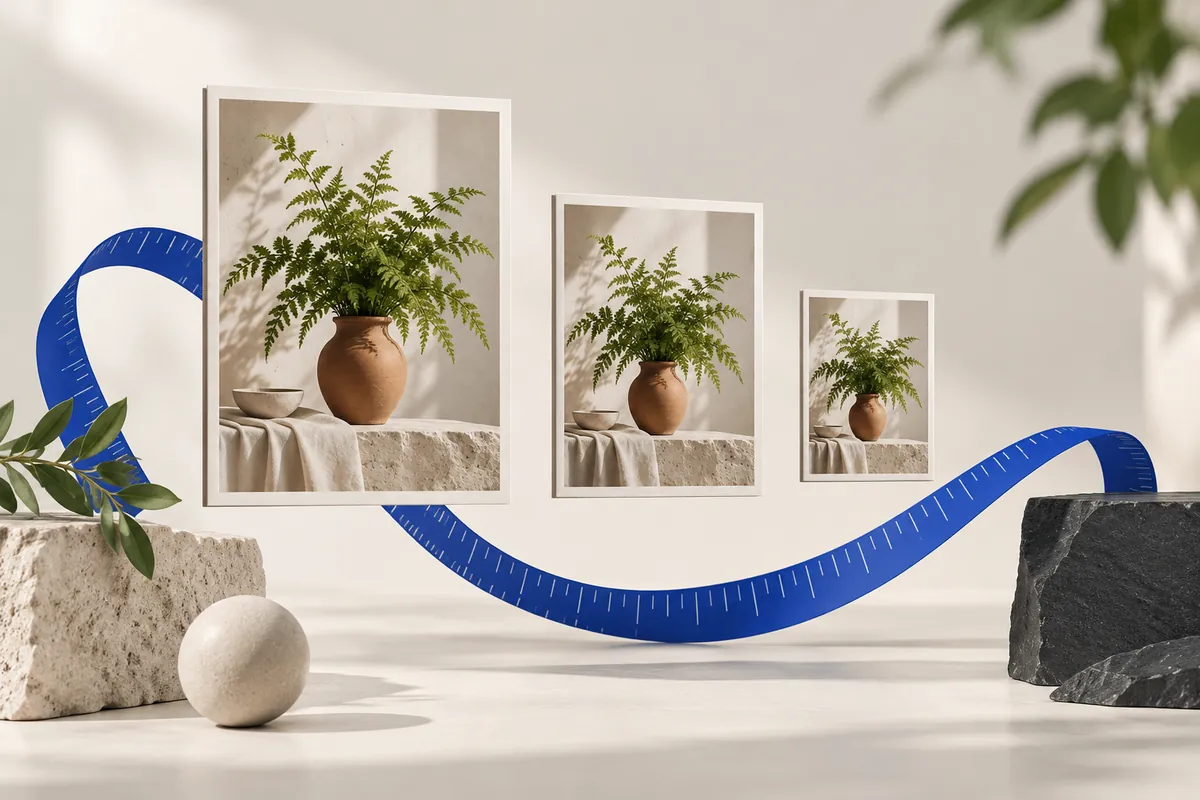
A 1920 × 1080 image has 2073600 pixels, regardless of whether it is stored as JPEG, PNG or WebP. That count describes its decoded grid. The download’s byte count describes the compressed representation of that grid. A flat illustration and a grainy photograph can share the same dimensions while producing very different file weights. Texture, noise, alpha and encoding settings all change what the encoder has to store.
This distinction explains two common surprises. A smaller image can still weigh more after it is re-encoded with different settings. A tiny compressed file can still need substantial memory when decoded. Evaluate dimensions, stored bytes and visual detail separately. None of those measurements can stand in for the other two.
A maximum file size is an acceptance rule: the result must not exceed a ceiling. It does not require the output to weigh exactly that amount. This editor uses decimal units, so 100 KB means 100000 bytes and 1 MB means 1000000 bytes. A result of 98200 bytes meets a 100 KB limit; 100001 bytes does not. Those values explain the rule, rather than predicting what your photo will produce.
For JPEG and WebP, the tool can try different quality values. If the limit still cannot be met, a fit-mode job can reduce dimensions only when you explicitly allow that. Exact crop and padding canvases remain fixed. PNG follows a different path because its encoding is lossless here. An unreachable combination should lead to a clear warning and a revised requirement, not a secretly changed format or chopped-off subject.
A JPEG quality value of 85 does not mean that 85% of the source survives. It is an encoder setting, and its visual effect depends on the image and the encoder. Start with a moderate high-quality export, inspect important details, then lower the setting only as far as your use case allows. Skin, hair, small lettering, foliage and smooth gradients are useful places to look for artifacts.
Dimensions and quality solve different problems. A 4000 px photo at very low quality may contain lots of pixels but weak detail. A 1000 px photo at high quality may look clean at its intended size but cannot supply a large print. Choose a sensible pixel grid first; then use quality to control encoding. Even quality 100 is not a guarantee that a JPEG export is lossless.
Resizing changes pixel values along edges and gradients. A compact source may use a palette, while a browser export may use a fuller color representation. The original may also have been carefully optimized. Fewer pixels therefore do not guarantee fewer stored bytes. Compare the real source and output sizes rather than assuming a particular saving from the scale percentage.
Try the optional lossless optimizer when PNG is required. “Lossless” describes the optimization of the already exported PNG: it must preserve that image’s decoded pixels. It does not undo changes introduced by resizing, and it does not guarantee a smaller file for every input. If the optimized export is not smaller, retaining the valid native output is preferable to claiming a saving that did not happen.
A preview is helpful, but the saved output is what the receiving app will use. Check its actual dimensions, MIME type and exact bytes. Open the file in an image viewer, inspect the important details at a sensible scale, and confirm that transparency or the chosen background behaves as expected. If you created a ZIP, open it and compare its successful entries with the expected count.
When a result fails, change the constraint that is actually responsible. Wrong shape calls for a geometry decision; unreadable text calls for more detail or less aggressive encoding; excessive bytes call for a permitted compression or dimension change. Keep each candidate separate until you choose the final one. The original remains your reliable starting point for every new export.
These relationships explain why changing one setting can affect another. Use them to identify which constraint matters most for your image.
Not under every combination of required format, exact dimensions and useful detail. The tool measures the output and reports an unmet target. Reduce fit dimensions or change format only when the destination permits that compromise.
Resampling, palette differences and encoder settings can change storage efficiency. Compare actual bytes and try the optional lossless optimizer. Fewer pixels alone do not guarantee a smaller encoded file.
No. JPEG quality 100 is still an encoding setting, not a promise of identical source pixels. Resizing itself also changes the grid. Preserve the original when you need an unchanged archive.
The numerical examples on this page come from explicit geometry calculations and the project’s synthetic files. Hypothetical byte counts illustrate acceptance rules; downloadable sample counts describe those specific files. The references below explain the underlying formats and browser export API, not a guaranteed saving or acceptance by another service.
Keep the original, choose one clear requirement, and inspect the exported file. A useful result meets its destination’s rules and keeps the details that matter.
Back to the image tools