Choose your image
Open a JPG, PNG or WebP from your device. Your file stays with you.
Know exactly what you have. Check pixels, aspect ratio, format and file size on your device.
or browse your files to get started
JPG, PNG & WebP · Up to 25 MiB each
You can also paste an imageChoose an image first.
50 files · 250 MiB total · 24 MP · 8192 px per side
Open a JPG, PNG or WebP from your device. Your file stays with you.
Set your dimensions, choose how to fit the image, and check the preview.
Process your image, review the actual size, and download the result.
A few other ways to get your images ready.
A practical field guide to image size, composition and file weight. Read from start to finish, or jump straight to the decision you need to make.
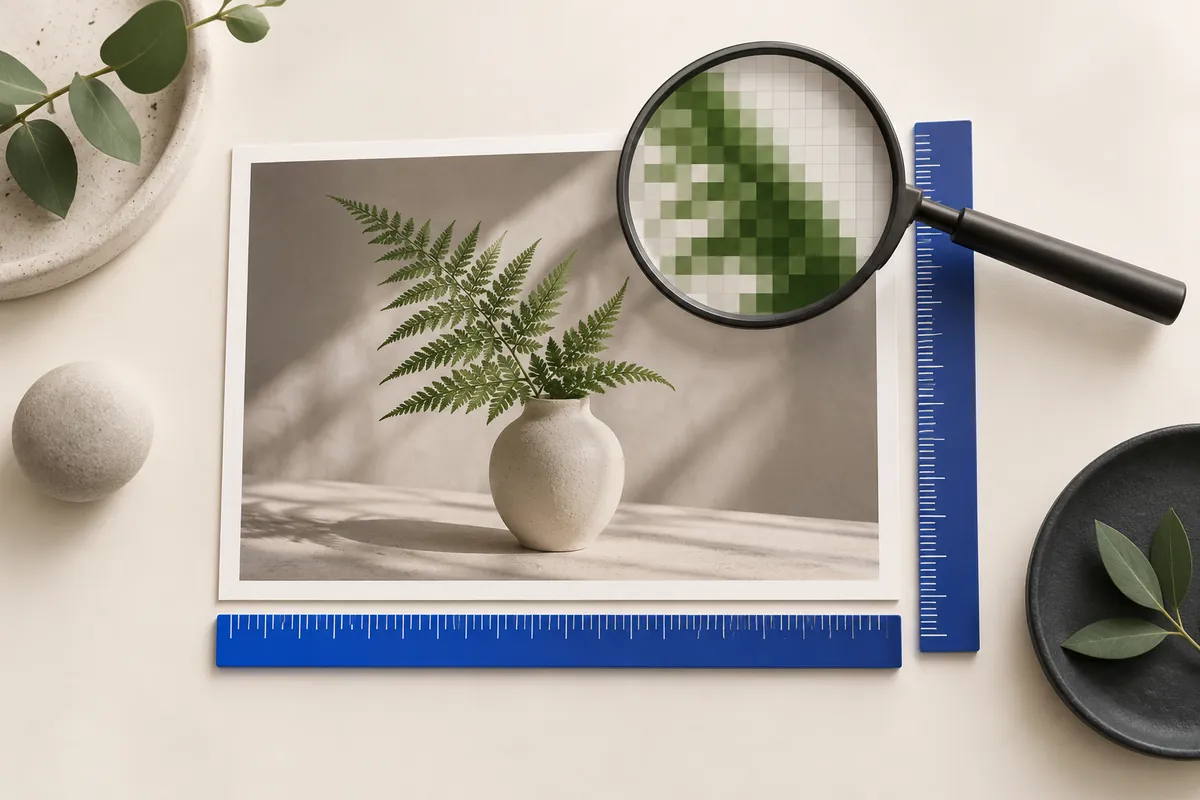
The dimensions checker is for inspection, not for creating a new image. Read the width, height, ratio, type and bytes of a supported file, then compare those measurements with the destination. If the original already meets the requirement and looks right, another export may be unnecessary. A 1920 × 1080 image does not need to be resaved just to confirm that it is 16:9.
Use the measurements to select the next tool. Too many pixels points toward proportional resizing. A correct canvas with excessive bytes points toward compression or a byte ceiling. An unsuitable ratio points toward crop or padding. The checker does not validate the rules of a passport office, print provider or marketplace, and its measurements are not a certification of those external requirements.
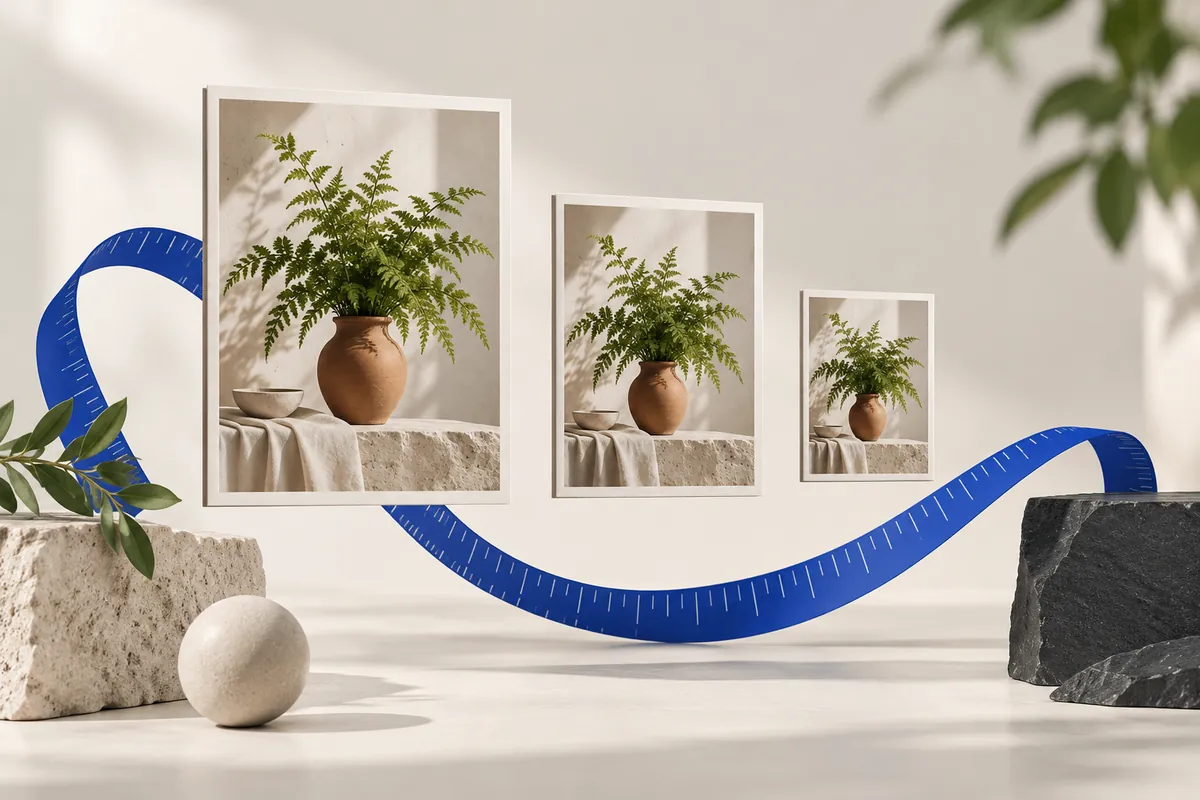
A 1920 × 1080 image has 2073600 pixels, regardless of whether it is stored as JPEG, PNG or WebP. That count describes its decoded grid. The download’s byte count describes the compressed representation of that grid. A flat illustration and a grainy photograph can share the same dimensions while producing very different file weights. Texture, noise, alpha and encoding settings all change what the encoder has to store.
This distinction explains two common surprises. A smaller image can still weigh more after it is re-encoded with different settings. A tiny compressed file can still need substantial memory when decoded. Evaluate dimensions, stored bytes and visual detail separately. None of those measurements can stand in for the other two.
Aspect ratio is width divided by height. A 4000 × 3000 photograph has a 4:3 ratio; a 1200 × 800 photograph has a 3:2 ratio. Changing both sides by the same scale factor preserves this relationship. Changing them independently can stretch a face, widen a bottle or turn a circle into an oval. This editor uses proportional fitting, cropping or padding instead of treating distortion as an acceptable resize.
When you only know the desired width, leave the other side automatic. For a 4000 × 3000 source, width 1600 gives height 1200. If the destination instead needs 1600 × 900, you are also asking for a new ratio. Decide whether the missing space should come from cropping the image or adding space around it. A ratio decision is a composition decision, not just a multiplication.
Pixel dimensions describe available samples. Pixels per inch relates those samples to a physical print size. At 300 pixels per inch, a 6 × 4 inch image needs 1800 × 1200 pixels. The same pixels at 150 pixels per inch describe 12 × 8 inches. Changing a density tag alone does not add information or turn a small screenshot into a detailed large print.
DPI is often used loosely for this conversation, but printer dots and image pixels are different quantities. Ask the print provider for actual dimensions, density and color requirements. This browser editor uses ordinary SDR/sRGB processing and does not promise preservation of every ICC profile, CMYK, HDR or 16-bit data. Use a print-specific workflow when those requirements matter.
A phone photograph can store its orientation in an EXIF tag instead of physically arranging the pixel grid as you expect. Software that interprets the tag displays it upright; software that ignores it may show a rotated result. This editor normalizes the supported image’s orientation before processing and removes EXIF, GPS and XMP from the exported image. The goal is an upright pixel result that does not depend on retaining the original orientation tag.
Metadata removal is useful when preparing a shareable derivative, but it is not complete anonymization. A face, address, license plate or location visible in the photograph remains visible unless you change the composition yourself. Also preserve an archival original when dates, camera settings or authorship information matter to your workflow. The reduced export is a delivery copy, not an archival replacement.
An image is ready when it meets the place where it will be used. A page may ask for a maximum width; an upload form may enforce a byte ceiling; a layout may need an exact rectangle. Those requirements are related, but they are not interchangeable. Write down the destination’s actual instructions before you change the source. “Make it smaller” is a direction. “Keep the complete photo within 1600 × 1600 and below 500000 bytes” is a testable result.
Separate the non-negotiable rules from your preferences. If every product must stay visible, cropping is not an acceptable shortcut. If a form requires PNG, switching to JPEG is not a solution. If a fixed canvas is mandatory, fit mode alone may leave you with the wrong dimensions. The best settings are the ones that satisfy the hard rules while keeping useful detail.
Use fit mode when neither side may exceed a limit and the whole subject must remain visible.
Use padding to keep the entire image, or cover when you deliberately accept a crop.
Set a file-size ceiling and verify the encoded output independently of its dimensions.
These relationships explain why changing one setting can affect another. Use them to identify which constraint matters most for your image.
A density tag does not create more pixel detail. Calculate the required pixels from physical print size and pixels per inch, then follow the print provider’s actual requirements.
Fit treats both dimensions as maximum bounds and preserves the original ratio. It can therefore produce a smaller rectangle. Use padding for an exact canvas with the complete image, or cover when you accept removing edges.
No. Export removes EXIF, GPS and XMP, but personal information visible in the pixels remains. Review faces, addresses, screenshots and other visible content before sharing.
The numerical examples on this page come from explicit geometry calculations and the project’s synthetic files. Hypothetical byte counts illustrate acceptance rules; downloadable sample counts describe those specific files. The references below explain the underlying formats and browser export API, not a guaranteed saving or acceptance by another service.
Keep the original, choose one clear requirement, and inspect the exported file. A useful result meets its destination’s rules and keeps the details that matter.
Back to the image tools