A practical guide to your next decision
A practical field guide to image size, composition and file weight. Read from start to finish, or jump straight to the decision you need to make.
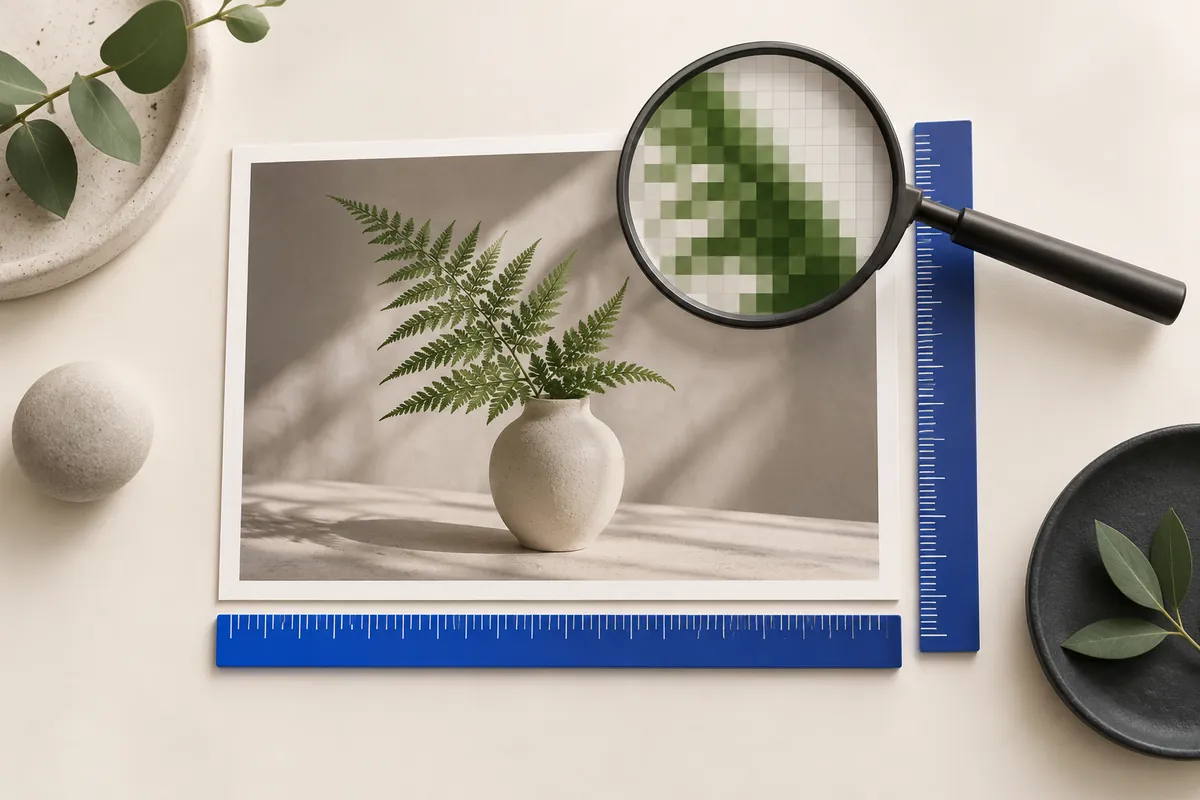

Worked example and sample files
Pixels describe the dimensions of the decoded image. Bytes describe the stored file. Two images with the same width and height can have very different file sizes because noise, texture, transparency, format and encoder settings change compression efficiency. A request for 1920 × 1080 is a geometric constraint. A request for less than 200 KB is a storage constraint. Check which one your destination actually enforces.
Work through an example
Compare the downloadable 1920 × 1080 crop and padded examples below. Their dimensions match, but their byte counts differ. In the checker, read the dimensions and the exact bytes independently; multiplying width by height does not give the compressed file size.
- Open the relevant tool below and choose a supported image. Check the original dimensions and bytes before changing anything.
- Set the dimensions and fitting mode for your destination. Enable enlargement only if you accept that it cannot restore missing detail.
- Process the image, switch between Original and Result, and check the final pixel dimensions and exact bytes. If a target is not met, change an allowed constraint and run again.
Check before you download
Changing a filename or DPI tag does not reduce pixel dimensions or guarantee a byte limit. When both constraints apply, set the geometry first and then test compression against the maximum bytes.
Try the files yourself
The following original geometric illustration and exports are supplied with this project. These are actual files, not estimated savings. The exported examples use JPEG quality 85. Your own images will have different byte counts; compare details as well as weight.

| Result | Width × Height | File size |
|---|---|---|
| Original | 4032 × 3024 | 225354 bytes |
| Try a sample image | 1200 × 900 | 36438 bytes |
| Fit within bounds | 1440 × 1080 | 41113 bytes |
| Fill & crop | 1920 × 1080 | 44272 bytes |
| Add padding | 1920 × 1080 | 44602 bytes |




Choose your next step
Exported images remove EXIF, GPS and XMP metadata. Processing uses SDR/sRGB.
Read three measurements without confusing them
Use three separate columns in your comparison: dimensions, encoded bytes and visual usefulness. Dimensions tell you whether the rectangle fits. Bytes tell you whether the upload ceiling is met. Visual review tells you whether the file still communicates. A candidate can pass two columns and fail the third. This is why a single “optimized” badge cannot replace measurements and inspection.
A helpful experiment keeps geometry constant while changing format or quality. A second experiment keeps format and quality constant while changing dimensions. The observed byte difference then has a clearer explanation. Use the real sample exports below for comparison, but treat their measurements as results for that illustration, not as a general compression ratio for photographs.
Pixels describe the image; bytes describe the file
A 1920 × 1080 image has 2073600 pixels, regardless of whether it is stored as JPEG, PNG or WebP. That count describes its decoded grid. The download’s byte count describes the compressed representation of that grid. A flat illustration and a grainy photograph can share the same dimensions while producing very different file weights. Texture, noise, alpha and encoding settings all change what the encoder has to store.
This distinction explains two common surprises. A smaller image can still weigh more after it is re-encoded with different settings. A tiny compressed file can still need substantial memory when decoded. Evaluate dimensions, stored bytes and visual detail separately. None of those measurements can stand in for the other two.
Meet a byte ceiling without hiding the tradeoff
A maximum file size is an acceptance rule: the result must not exceed a ceiling. It does not require the output to weigh exactly that amount. This editor uses decimal units, so 100 KB means 100000 bytes and 1 MB means 1000000 bytes. A result of 98200 bytes meets a 100 KB limit; 100001 bytes does not. Those values explain the rule, rather than predicting what your photo will produce.
For JPEG and WebP, the tool can try different quality values. If the limit still cannot be met, a fit-mode job can reduce dimensions only when you explicitly allow that. Exact crop and padding canvases remain fixed. PNG follows a different path because its encoding is lossless here. An unreachable combination should lead to a clear warning and a revised requirement, not a secretly changed format or chopped-off subject.
Why local tools need honest resource limits
The compressed input is only part of the memory cost. A decoded 4000 × 3000 RGBA image represents 48000000 bytes before working buffers and the output are considered. A batch of large originals can therefore be demanding even when each file looks small on disk. Sequential processing reduces simultaneous work, but it cannot make a device’s memory unlimited.
Admission limits are 25 MiB per file, 24 megapixels, 8192 px per side, 50 files and 250 MiB of queued input. A job below those headline limits can still be rejected if its intermediate image buffers exceed the working budget. On a constrained device, use fewer files or a smaller source and keep the original elsewhere. Cancel and clear are useful controls, not signs that a larger job is guaranteed to succeed on retry.
The concepts behind this page
These relationships explain why changing one setting can affect another. Use them to identify which constraint matters most for your image.
- Pixel dimensions
- The width and height of the decoded image grid.
- File size in bytes
- The amount of data in the encoded download, measured after processing.
- Encoding quality
- A JPEG/WebP setting that trades compression against visible artifacts.
- Output canvas
- The complete exported rectangle, including any padding.
- Local processing
- Image operations performed in browser memory on your device.
- Batch processing
- One settings configuration applied to admitted images in sequence.
- Encoding quality influences the encoded File size in bytes.
Questions worth asking before you export
Why is the output smaller than the dimensions I entered?
Fit treats both dimensions as maximum bounds and preserves the original ratio. It can therefore produce a smaller rectangle. Use padding for an exact canvas with the complete image, or cover when you accept removing edges.
Does quality 100 make the export lossless?
No. JPEG quality 100 is still an encoding setting, not a promise of identical source pixels. Resizing itself also changes the grid. Preserve the original when you need an unchanged archive.
Can enlargement recover missing text or faces?
No. Enlargement estimates new pixels and cannot reliably reconstruct details absent from the source. Find a higher-resolution original when those details are important.
Sources and how to verify the examples
The numerical examples on this page come from explicit geometry calculations and the project’s synthetic files. Hypothetical byte counts illustrate acceptance rules; downloadable sample counts describe those specific files. The references below explain the underlying formats and browser export API, not a guaranteed saving or acceptance by another service.
Ready to prepare your image?
Keep the original, choose one clear requirement, and inspect the exported file. A useful result meets its destination’s rules and keeps the details that matter.
Back to the image tools