A practical guide to your next decision
A practical field guide to image size, composition and file weight. Read from start to finish, or jump straight to the decision you need to make.
Worked example and sample files
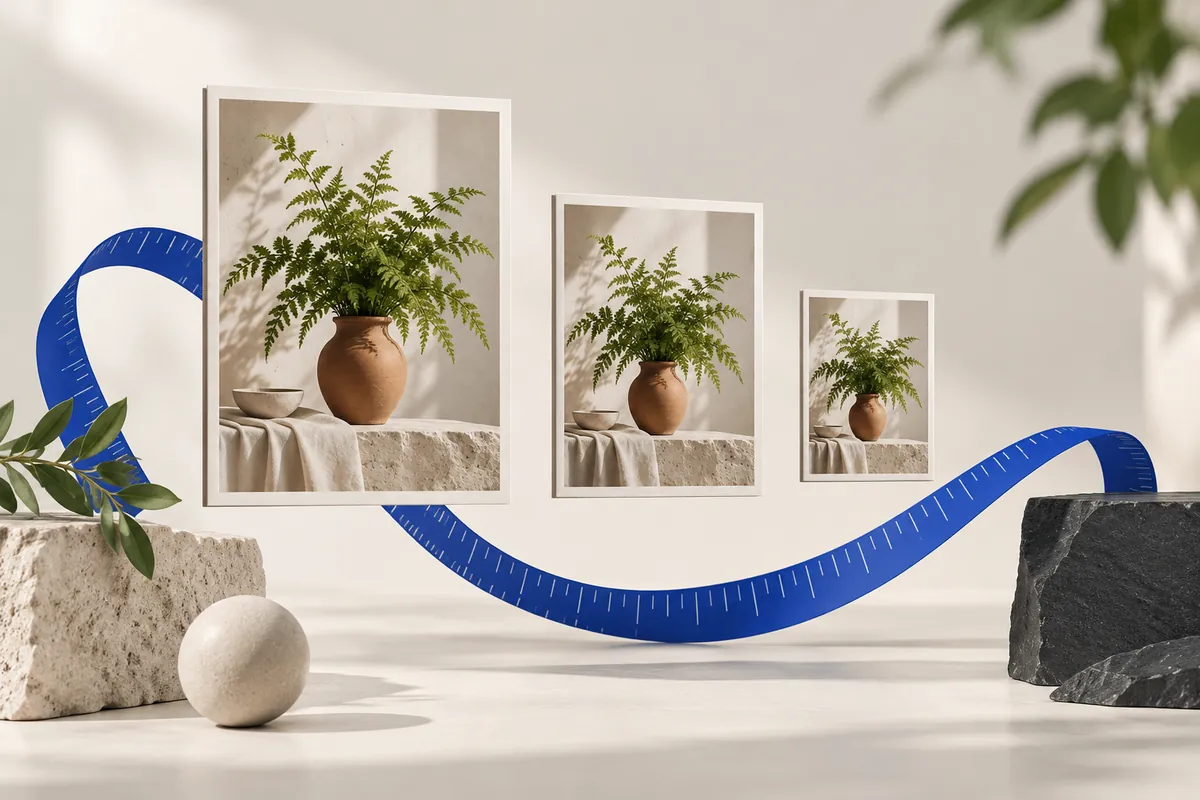
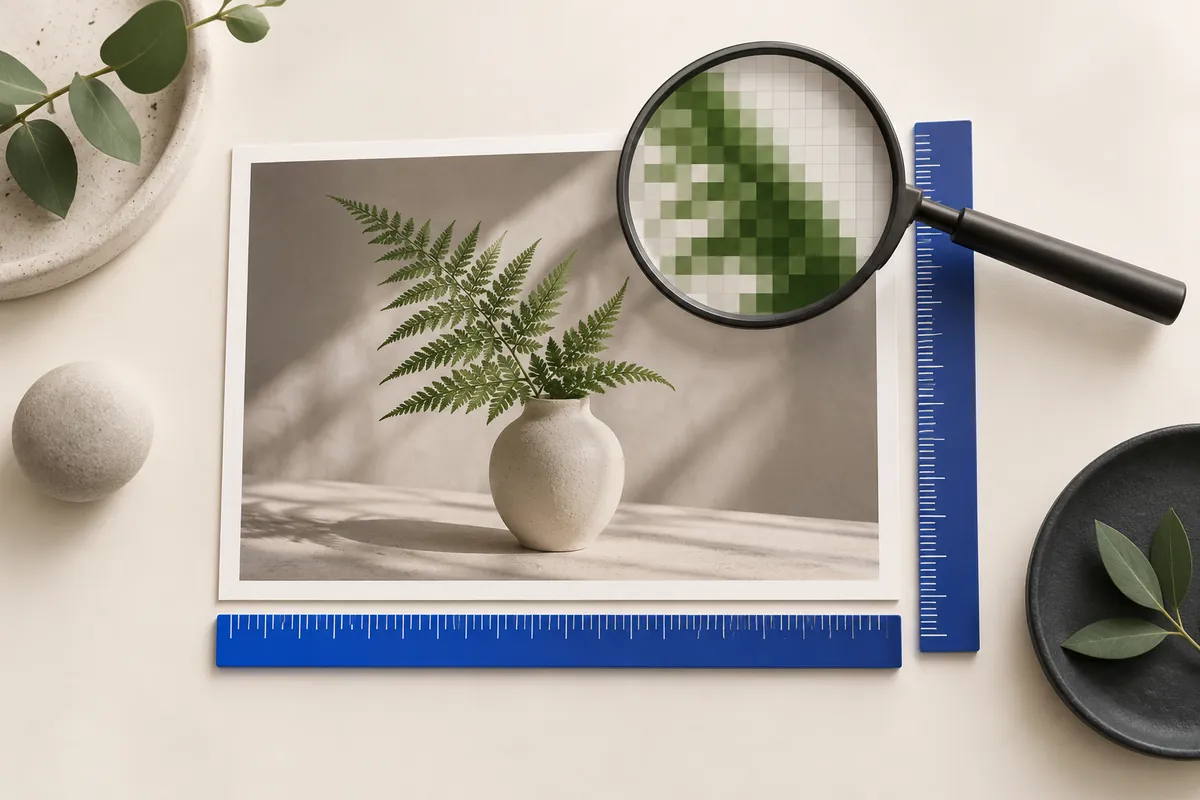
Resizing changes the pixel grid. Reducing a photograph removes samples; enlarging it estimates new ones. Neither operation can preserve every detail of the original. For a screen image, choose dimensions close to its displayed size, keep the aspect ratio and export only once from the original. JPEG quality affects compression artifacts, while dimensions affect the amount of detail available. These are separate controls.
Work through an example
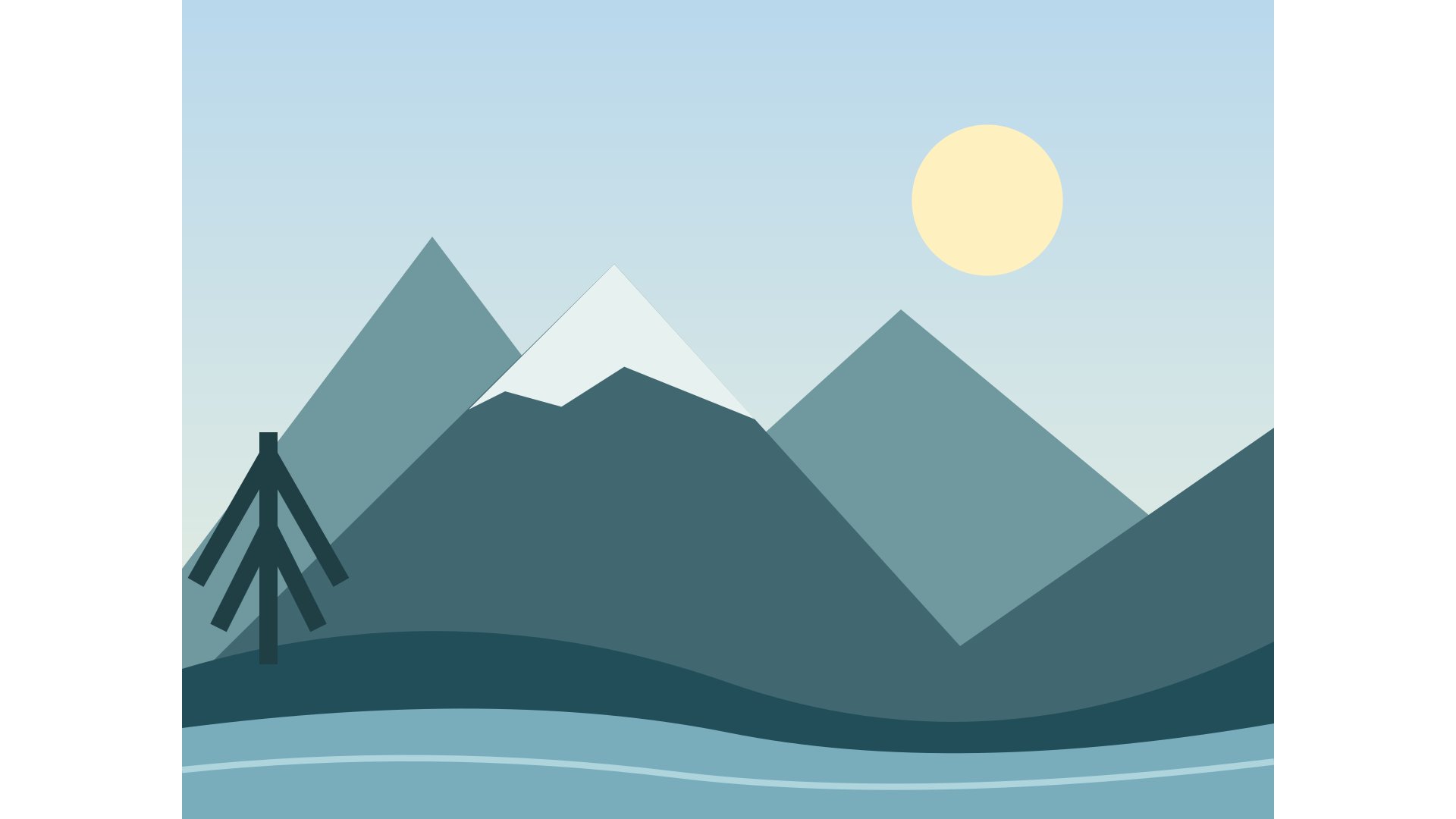
Our 4032 × 3024 landscape becomes 1440 × 1080 with maximum dimensions of 1920 × 1080 in fit mode. Start at JPEG quality 85, then compare small branches and mountain edges at 100% zoom. A quality setting of 100 is still not a promise of a lossless JPEG export.
- Open the relevant tool below and choose a supported image. Check the original dimensions and bytes before changing anything.
- Set the dimensions and fitting mode for your destination. Enable enlargement only if you accept that it cannot restore missing detail.
- Process the image, switch between Original and Result, and check the final pixel dimensions and exact bytes. If a target is not met, change an allowed constraint and run again.
Check before you download
Keep a separate original. Repeatedly resizing an already compressed result accumulates losses. Enlarging a 600 px photo to 2400 px does not recover text, faces or fine texture that the source never contained.
Try the files yourself
The following original geometric illustration and exports are supplied with this project. These are actual files, not estimated savings. The exported examples use JPEG quality 85. Your own images will have different byte counts; compare details as well as weight.

| Result | Width × Height | File size |
|---|---|---|
| Original | 4032 × 3024 | 225354 bytes |
| Try a sample image | 1200 × 900 | 36438 bytes |
| Fit within bounds | 1440 × 1080 | 41113 bytes |
| Fill & crop | 1920 × 1080 | 44272 bytes |
| Add padding | 1920 × 1080 | 44602 bytes |



Choose your next step
Exported images remove EXIF, GPS and XMP metadata. Processing uses SDR/sRGB.
Judge quality by the details your reader needs
“Without losing quality” is best treated as a practical visual goal, not a mathematical promise about every source sample. A smaller image necessarily has fewer samples, while a JPEG export can introduce encoding loss. Define acceptable quality by the destination: readable text, recognizable faces, useful texture and clean boundaries at the intended size. Keep an untouched original when preservation itself is the goal.
Choose three inspection areas before testing: a fine edge, a smooth gradient and the smallest essential detail. Compare them in the original and exported candidate at the same scale. If one fails, first decide whether the cause is too few pixels or compression artifacts. That distinction tells you which setting to change and prevents a higher quality slider from being mistaken for recovered resolution.
Quality is a control, not a percentage of perfection
A JPEG quality value of 85 does not mean that 85% of the source survives. It is an encoder setting, and its visual effect depends on the image and the encoder. Start with a moderate high-quality export, inspect important details, then lower the setting only as far as your use case allows. Skin, hair, small lettering, foliage and smooth gradients are useful places to look for artifacts.
Dimensions and quality solve different problems. A 4000 px photo at very low quality may contain lots of pixels but weak detail. A 1000 px photo at high quality may look clean at its intended size but cannot supply a large print. Choose a sensible pixel grid first; then use quality to control encoding. Even quality 100 is not a guarantee that a JPEG export is lossless.
Enlargement adds pixels, not recovered detail
Upscaling estimates new samples between existing ones. It can make an image fit a larger rectangle, but it cannot reliably recover letters, eyelashes or texture that the source never recorded. A 600 px image enlarged to 2400 px has sixteen times as many output pixels when both sides scale by four. It does not have sixteen times as much photographic information.
Leave enlargement off unless the destination requires it and you accept the tradeoff. If a crop needs more pixels than the selected source area provides, the editor can reject it rather than silently enlarge. For important artwork, look for a higher-resolution original or a suitable vector source. This tool does not offer AI reconstruction, vector tracing or a professional restoration workflow.
Match the image to its display area
A website image has an intrinsic pixel size and a displayed layout size. If a photograph appears 800 CSS pixels wide, exporting a 4000 px original may be unnecessary for that placement. A 1600 px candidate can be a sensible starting point for a display where two image pixels per CSS pixel are useful, but it is not a universal rule. Layout, display density and the importance of fine detail all affect the choice.
Make separate exports from the original when a project needs multiple sizes. A thumbnail, an article image and a large preview serve different viewing distances and layouts. Do not repeatedly shrink the previous JPEG export. This editor prepares individual assets; your site still needs to choose which asset to serve, reserve its layout space and provide meaningful alternative text when the image communicates content.
The concepts behind this page
These relationships explain why changing one setting can affect another. Use them to identify which constraint matters most for your image.
- Pixel dimensions
- The width and height of the decoded image grid.
- Encoding quality
- A JPEG/WebP setting that trades compression against visible artifacts.
- JPEG
- A supported photographic output with lossy encoding and no transparency.
- File size in bytes
- The amount of data in the encoded download, measured after processing.
- Crop
- A selected source rectangle that leaves the remaining edges out of the export.
- Output canvas
- The complete exported rectangle, including any padding.
- Encoding quality influences the encoded File size in bytes.
Questions worth asking before you export
Why is the output smaller than the dimensions I entered?
Fit treats both dimensions as maximum bounds and preserves the original ratio. It can therefore produce a smaller rectangle. Use padding for an exact canvas with the complete image, or cover when you accept removing edges.
Does quality 100 make the export lossless?
No. JPEG quality 100 is still an encoding setting, not a promise of identical source pixels. Resizing itself also changes the grid. Preserve the original when you need an unchanged archive.
Can enlargement recover missing text or faces?
No. Enlargement estimates new pixels and cannot reliably reconstruct details absent from the source. Find a higher-resolution original when those details are important.
Sources and how to verify the examples
The numerical examples on this page come from explicit geometry calculations and the project’s synthetic files. Hypothetical byte counts illustrate acceptance rules; downloadable sample counts describe those specific files. The references below explain the underlying formats and browser export API, not a guaranteed saving or acceptance by another service.
Ready to prepare your image?
Keep the original, choose one clear requirement, and inspect the exported file. A useful result meets its destination’s rules and keeps the details that matter.
Back to the image tools