Choose your image
Open a JPG, PNG or WebP from your device. Your file stays with you.
Give your photos the right dimensions. Adjust JPEG quality and see the real file size before downloading.
or browse your files to get started
JPG, PNG & WebP · Up to 25 MiB each
You can also paste an imageMaximum dimensions. The whole image stays visible.
1 KB = 1,000 bytes · 1 MB = 1,000,000 bytes
Available for fit mode; exact crop/padding dimensions stay fixed.
Enlargement does not restore detail.
Processed locally. No uploads, no account.
50 files · 250 MiB total · 24 MP · 8192 px per side
Open a JPG, PNG or WebP from your device. Your file stays with you.
Set your dimensions, choose how to fit the image, and check the preview.
Process your image, review the actual size, and download the result.
A few other ways to get your images ready.
A practical field guide to image size, composition and file weight. Read from start to finish, or jump straight to the decision you need to make.
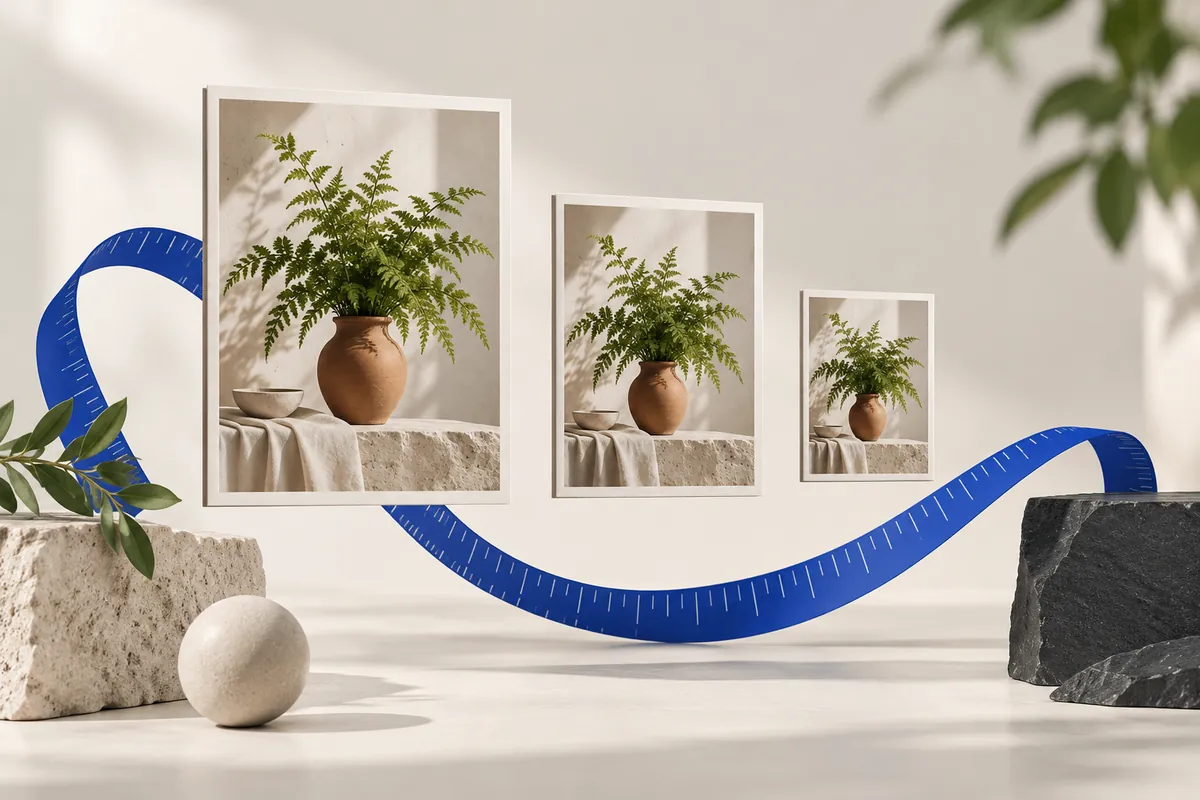
Use the original camera export when possible, rather than a copy already reduced by a messenger or social feed. Resizing a previously compressed JPEG cannot recover the discarded information. Decide the final width or bounding box, keep the subject’s proportions and make one delivery export. Look at smooth skies for banding and at branches, hair and small labels for compression artifacts. A file can look acceptable as a thumbnail but weak in a large preview.
JPEG output has no transparent pixels. When the source includes alpha, the selected background becomes part of the image. The export also removes source metadata; preserve your archival copy if capture dates or camera information are important. A good JPEG workflow balances useful pixels and acceptable artifacts, then verifies exact bytes when a destination imposes a ceiling.
Width-only sizing is convenient when the final height is flexible. Two-sided fit is convenient for a mixed collection that must stay within a common maximum. Percentage sizing is convenient when you want the same scale reduction for each source. A 50% width and height does not mean 50% as many pixels: it leaves 25% of the original pixel count, because both sides shrink.
For example, 4000 × 3000 at 50% becomes 2000 × 1500: 12 million pixels become 3 million. This calculation says nothing exact about the JPEG byte reduction. Also check rounding on odd dimensions. The result is an integer pixel grid, so a computed fraction of a pixel must be rounded. Read the measured output instead of expecting every ratio calculation to land on whole numbers.
A JPEG quality value of 85 does not mean that 85% of the source survives. It is an encoder setting, and its visual effect depends on the image and the encoder. Start with a moderate high-quality export, inspect important details, then lower the setting only as far as your use case allows. Skin, hair, small lettering, foliage and smooth gradients are useful places to look for artifacts.
Dimensions and quality solve different problems. A 4000 px photo at very low quality may contain lots of pixels but weak detail. A 1000 px photo at high quality may look clean at its intended size but cannot supply a large print. Choose a sensible pixel grid first; then use quality to control encoding. Even quality 100 is not a guarantee that a JPEG export is lossless.
A maximum file size is an acceptance rule: the result must not exceed a ceiling. It does not require the output to weigh exactly that amount. This editor uses decimal units, so 100 KB means 100000 bytes and 1 MB means 1000000 bytes. A result of 98200 bytes meets a 100 KB limit; 100001 bytes does not. Those values explain the rule, rather than predicting what your photo will produce.
For JPEG and WebP, the tool can try different quality values. If the limit still cannot be met, a fit-mode job can reduce dimensions only when you explicitly allow that. Exact crop and padding canvases remain fixed. PNG follows a different path because its encoding is lossless here. An unreachable combination should lead to a clear warning and a revised requirement, not a secretly changed format or chopped-off subject.
A phone photograph can store its orientation in an EXIF tag instead of physically arranging the pixel grid as you expect. Software that interprets the tag displays it upright; software that ignores it may show a rotated result. This editor normalizes the supported image’s orientation before processing and removes EXIF, GPS and XMP from the exported image. The goal is an upright pixel result that does not depend on retaining the original orientation tag.
Metadata removal is useful when preparing a shareable derivative, but it is not complete anonymization. A face, address, license plate or location visible in the photograph remains visible unless you change the composition yourself. Also preserve an archival original when dates, camera settings or authorship information matter to your workflow. The reduced export is a delivery copy, not an archival replacement.
A preview is helpful, but the saved output is what the receiving app will use. Check its actual dimensions, MIME type and exact bytes. Open the file in an image viewer, inspect the important details at a sensible scale, and confirm that transparency or the chosen background behaves as expected. If you created a ZIP, open it and compare its successful entries with the expected count.
When a result fails, change the constraint that is actually responsible. Wrong shape calls for a geometry decision; unreadable text calls for more detail or less aggressive encoding; excessive bytes call for a permitted compression or dimension change. Keep each candidate separate until you choose the final one. The original remains your reliable starting point for every new export.
These relationships explain why changing one setting can affect another. Use them to identify which constraint matters most for your image.
Fit treats both dimensions as maximum bounds and preserves the original ratio. It can therefore produce a smaller rectangle. Use padding for an exact canvas with the complete image, or cover when you accept removing edges.
No. JPEG quality 100 is still an encoding setting, not a promise of identical source pixels. Resizing itself also changes the grid. Preserve the original when you need an unchanged archive.
No. Enlargement estimates new pixels and cannot reliably reconstruct details absent from the source. Find a higher-resolution original when those details are important.
The numerical examples on this page come from explicit geometry calculations and the project’s synthetic files. Hypothetical byte counts illustrate acceptance rules; downloadable sample counts describe those specific files. The references below explain the underlying formats and browser export API, not a guaranteed saving or acceptance by another service.
Keep the original, choose one clear requirement, and inspect the exported file. A useful result meets its destination’s rules and keeps the details that matter.
Back to the image tools