A practical guide to your next decision
A practical field guide to image size, composition and file weight. Read from start to finish, or jump straight to the decision you need to make.
Worked example and sample files
To make a non-square photo square without losing any edges, add padding. The photo is scaled proportionally into the canvas, and empty space receives your chosen color or transparency. A square file is not necessarily a square crop: padding changes the canvas while preserving the full rectangular photograph.
Work through an example
A 1200 × 1800 portrait inside a 1080 × 1080 canvas becomes 720 × 1080, with 180 px padding on each side. For a 600 × 400 photo on that canvas with enlargement disabled, the photo remains 600 × 400 and is centered with 240 px horizontal and 340 px vertical margins.
- Open the relevant tool below and choose a supported image. Check the original dimensions and bytes before changing anything.
- Set the dimensions and fitting mode for your destination. Enable enlargement only if you accept that it cannot restore missing detail.
- Process the image, switch between Original and Result, and check the final pixel dimensions and exact bytes. If a target is not met, change an allowed constraint and run again.
Check before you download
For white margins choose a white background and disable transparency. For transparent margins keep PNG or WebP and enable transparency. If the destination needs the subject to fill the entire square, use a crop and inspect which edges are removed.
Try the files yourself
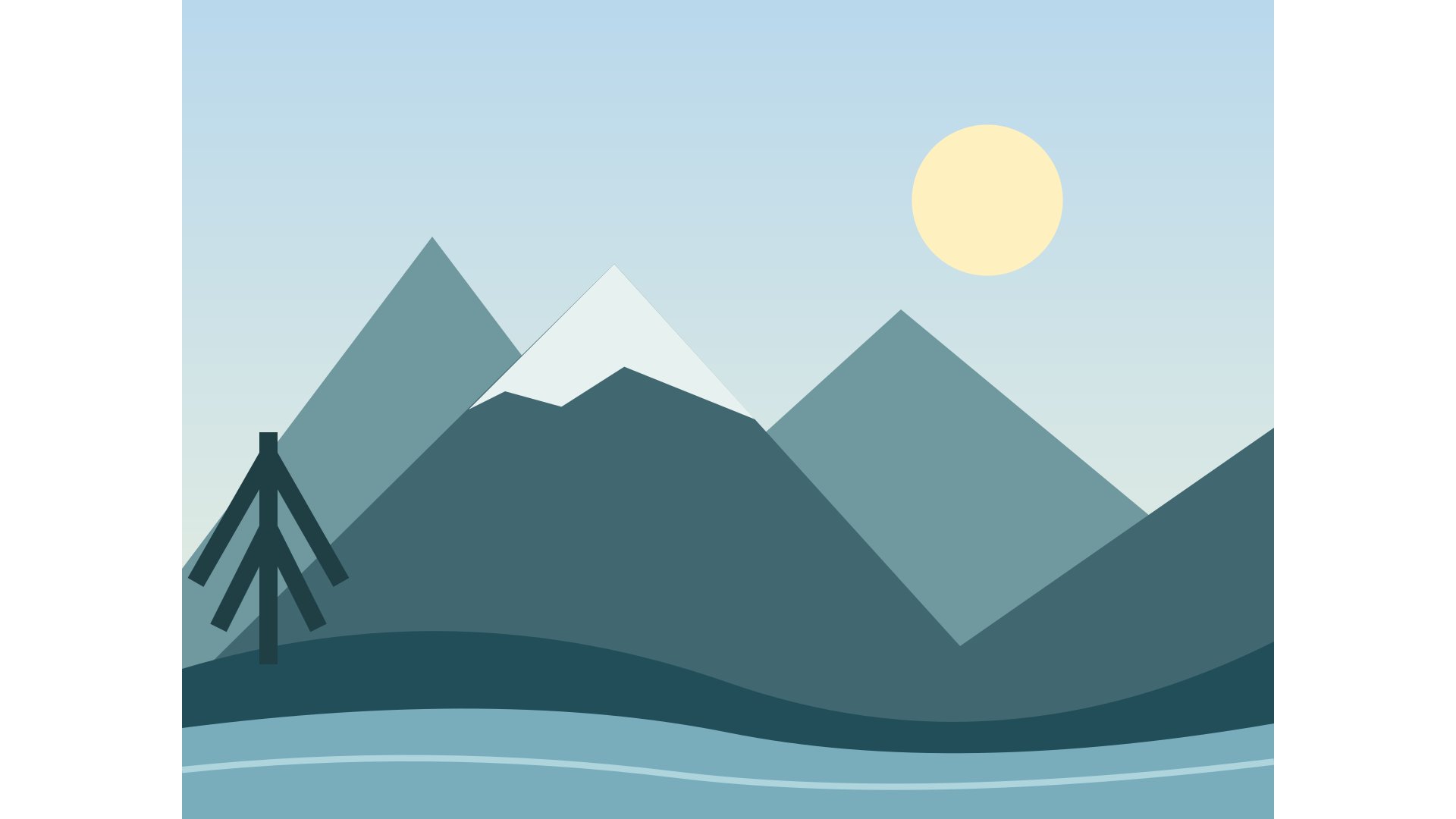
The following original geometric illustration and exports are supplied with this project. These are actual files, not estimated savings. The exported examples use JPEG quality 85. Your own images will have different byte counts; compare details as well as weight.

| Result | Width × Height | File size |
|---|---|---|
| Original | 4032 × 3024 | 225354 bytes |
| Try a sample image | 1200 × 900 | 36438 bytes |
| Fit within bounds | 1440 × 1080 | 41113 bytes |
| Fill & crop | 1920 × 1080 | 44272 bytes |
| Add padding | 1920 × 1080 | 44602 bytes |



Choose your next step
Exported images remove EXIF, GPS and XMP metadata. Processing uses SDR/sRGB.
Keep every edge by changing the surrounding canvas
When the whole photograph must remain visible, square padding is a framing choice rather than an unwanted leftover. The added space can make a portrait and a landscape fit the same interface. Decide whether that space should blend into a solid page background or remain transparent. Then check the subject’s scale: an identical canvas does not guarantee identical apparent size.
Try one source larger than the square and another smaller than it. With enlargement disabled, the smaller source may stay at its original size inside the new canvas. That behavior preserves the source resolution while meeting the outer dimensions. Enable enlargement only when its visual consequences are acceptable; it is not necessary merely to obtain a square file.
A square file does not have to be a square crop
Padding changes the canvas while leaving the whole photograph visible. It is useful for catalog tiles, artwork previews and layouts where every file needs the same outer shape. Cover changes the composition to fill that shape. Both can make a 1080 × 1080 file, but only padding keeps all the original edges. Think about whether empty space or missing content is the more acceptable tradeoff.
A 1200 × 1800 portrait fitted into 1080 × 1080 becomes 720 × 1080, leaving 180 px on each side. A small 600 × 400 source stays at that size when enlargement is disabled; on a 1080 square it leaves 240 px horizontally and 340 px vertically. This can be the correct outcome. A larger canvas is not permission to invent missing source detail.
Transparency needs a format and a background decision
Transparent space is not white space. An alpha channel records how opaque each pixel is, including soft edges around a logo or illustration. PNG and static WebP outputs can retain this channel. JPEG cannot: the image must be composited onto a background. Choose that background deliberately, especially when the final page is dark or the artwork has pale lettering.
Inspect edges against both light and dark surfaces. A logo that looks correct on white can reveal a halo on navy. Padding has the same choice: keep its empty space transparent, or fill it with a chosen color. Once alpha has been flattened into an opaque file, switching the extension back to PNG cannot reconstruct the missing transparency. Return to the transparent original instead.
Product photos: consistency without changing the product
A consistent catalog begins with a consistent canvas and a deliberate subject scale. Stretching each photograph to the same width and height makes bottles, shoes and boxes look different from their real proportions. Padding is a safer starting point when the complete item matters. A fixed canvas makes files match; it does not automatically make every photographed object occupy the same percentage of that canvas.
Compare an object that nearly touches the source edges with one photographed from farther away. Both may need separate framing before the shared export. Keep shadows and labels that help a shopper understand the item. Test the background color with the actual storefront. This editor prepares the image rectangle; it does not remove backgrounds, retouch defects or certify marketplace acceptance.
The concepts behind this page
These relationships explain why changing one setting can affect another. Use them to identify which constraint matters most for your image.
- Padding
- Added canvas space around an image whose proportions stay intact.
- Output canvas
- The complete exported rectangle, including any padding.
- Alpha channel
- Per-pixel opacity, including partially transparent edges.
- Pixel dimensions
- The width and height of the decoded image grid.
- Aspect ratio
- The relationship between width and height, such as 4:3 or 16:9.
- JPEG
- A supported photographic output with lossy encoding and no transparency.
- PNG
- A supported lossless output that can carry an alpha channel.
- Static WebP
- A supported still-image format with transparency and quality-controlled export.
- Crop
- A selected source rectangle that leaves the remaining edges out of the export.
- Pixel dimensions determine the proportions described by Aspect ratio.
- Crop changes the framing and can change Aspect ratio.
- Padding adds space to Output canvas.
- JPEG flattens instead of retaining an Alpha channel.
- PNG can preserve an Alpha channel.
- Static WebP can preserve an Alpha channel.
Questions worth asking before you export
Why is the output smaller than the dimensions I entered?
Fit treats both dimensions as maximum bounds and preserves the original ratio. It can therefore produce a smaller rectangle. Use padding for an exact canvas with the complete image, or cover when you accept removing edges.
Does quality 100 make the export lossless?
No. JPEG quality 100 is still an encoding setting, not a promise of identical source pixels. Resizing itself also changes the grid. Preserve the original when you need an unchanged archive.
Can enlargement recover missing text or faces?
No. Enlargement estimates new pixels and cannot reliably reconstruct details absent from the source. Find a higher-resolution original when those details are important.
Sources and how to verify the examples
The numerical examples on this page come from explicit geometry calculations and the project’s synthetic files. Hypothetical byte counts illustrate acceptance rules; downloadable sample counts describe those specific files. The references below explain the underlying formats and browser export API, not a guaranteed saving or acceptance by another service.
Ready to prepare your image?
Keep the original, choose one clear requirement, and inspect the exported file. A useful result meets its destination’s rules and keeps the details that matter.
Back to the image tools